
- check scores without distraction, en
- Cameron
ADHD Families: Check Scores Without Distraction, No App or Phone

The most practical way to check scores without distraction is a Wi-Fi connected, screen-free scoreboard that shows live updates for a chosen team, no phone or tablet required. The Original LiveWire Board is one example built for this exact job. Pair that device with guidance from the American Academy of Pediatrics on media quality, and you get a simple household fix instead of another app to manage.
TL;DR:
- Connecting a Wi-Fi e-paper scoreboard to the main network is essential, as guest networks often block necessary device communications.
- The device supports multiple sports categories such as baseball, football, basketball, and hockey, but users should verify supported leagues before purchase.
- Power consumption varies: plugged-in boards can refresh frequently without issue, while battery models need recharging more often depending on refresh frequency.
- Setup involves simple steps like choosing a location, connecting to Wi-Fi, selecting a team, and testing the score; router settings can impact connectivity.
- A screen-free scoreboard removes notifications and browsing distractions, making it more practical for households seeking low-friction score updates.
Table of Contents
- How screen-free Wi-Fi scoreboards deliver live updates
- Setting up your scoreboard to show live updates
- What to look for before buying a screen-free scoreboard
- Building screen-free scoreboards into daily routines
- What I’ve seen work in real households
- The Original LiveWire Board as a practical next step
- FAQ
- Sources
How screen-free Wi-Fi scoreboards deliver live updates
A screen-free scoreboard connects to your home Wi-Fi network and either receives pushed score updates from a subscription feed or hosts a small local web page you open in a browser to set it up. Either way, there is no app to install and no account to check daily. The device does one job and nothing else, which is the point.
Display technology matters more than it looks. Two approaches dominate:
- E-paper (e-ink) displays hold an image without drawing power between refreshes, so a scoreboard can sit at a stable score for an entire quarter without consuming energy.
- LED or LCD displays update faster and often read brighter in sunlit rooms, but draw continuous power and can feel closer to a typical screen.
A Wi-Fi e-paper scoreboard project built around a Seeed XIAO ESP32S3 PLUS and a 7.5-inch monochrome e-paper panel shows this is not theoretical: the device hosts its own access point and a local web control page, letting someone type in team names and scores without a companion app. That project demonstrates the core trade-off well: e-paper is efficient and glanceable, while app-free control keeps notifications and pop-ups out of the picture entirely.
Router settings decide whether any of this works. Guest networks and client isolation, common on home routers, can quietly block a smart device from reaching your phone or the internet even when the Wi-Fi password is correct. Checking for these settings before you assume the board is broken saves a lot of frustration.

Setting up your scoreboard to show live updates
Getting a screen-free scoreboard running takes a few minutes if you follow the steps in order rather than guessing.
- Pick a spot first. A kitchen counter, hallway shelf, or living room side table works better than a desk buried in paperwork, since the goal is a glance in passing, not a destination.
- Power it on and connect to Wi-Fi. Most boards either broadcast their own temporary network for setup or show a local web address you open in a browser to enter your home network name and password.
- Select your team or enable a feed subscription. Choose baseball, football, basketball, or hockey and confirm the correct team from the list.
- Test it with a live or recent score. If the number on the board matches what you’d see on a sports site, the connection is solid.
- Decide on power. A plugged-in board can refresh as often as it wants; a battery-powered one trades refresh frequency for weeks of runtime, since each update cycle is what drains the battery.
If the board won’t connect, restart it, then check your router. Many home networks isolate devices on a guest network by design, which blocks the very communication a scoreboard needs, a problem covered in Xfinity’s device connectivity troubleshooting guide and echoed in Google’s own notes on Wi-Fi connection issues for streaming devices. Switching to your main network, rather than a guest one, resolves most setup failures on the first try.
Pro Tip: Set up the board on your main Wi-Fi network, not a guest network, since client isolation on guest networks is the most common reason a scoreboard won’t show live scores.
What to look for before buying a screen-free scoreboard
Not every scoreboard fits every household, so a few checks before buying save returns and frustration later.
- Visibility and readability: confirm the display technology (e-paper versus LED or LCD) and whether digit size suits your room; numerals around 2 to 3 inches tall are comfortable to read from normal living room seating distances.
- Connectivity: verify the device controls through a browser or local page rather than a dedicated app, and check that it supports selecting or subscribing to specific teams.
- Power and refresh trade-offs: a plugged-in board can update more often, while a battery model will need recharging more frequently if you push for faster refresh rates.
- Sport coverage: confirm the product page lists your specific sport and league, since coverage varies by manufacturer and not every board supports every league.
- Setup, warranty, and support: look for a stated setup process, a warranty period, and a support channel in case the board needs a reset or a firmware update.
None of these details are dealbreakers on their own, but skipping the check on sport coverage or connectivity method is the most common reason a buyer ends up unhappy with a purchase that otherwise looked right.
Building screen-free scoreboards into daily routines
A scoreboard earns its keep when it fits patterns your household already has, rather than creating a new ritual to manage.
- Place it where people already pass by, like a kitchen counter or hallway, so checking a score takes a glance, not a detour.
- Keep it out of the bedroom and away from homework or mealtime surfaces, so it supports rather than competes with focus windows.
- Use it alongside, not instead of, other screen routines: the U.S. Surgeon General’s advisory on screen use points to scheduled screen-free times and redirecting to alternative activities as practical levers, and a single-purpose board is one such alternative.
- For a child with ADHD, fewer steps to get information tends to help; a board that shows one score with no login or search beats a phone that invites a dozen other taps.
- Keep a pediatrician or clinician in the loop on ADHD care decisions; a scoreboard is a household tool, not a treatment.
Pro Tip: Keep the board on a single team or single line of information. Multi-panel dashboards and frequent animations defeat the purpose by inviting longer looks.
What I’ve seen work in real households
In the homes I’ve talked with, the setups that stick are the boring ones: one board, one team, placed somewhere a parent or kid walks past anyway. The boards that get unplugged within a month are usually the ones someone tried to make into a bigger display than the household needed. A scoreboard is not a substitute for a conversation about screen habits or for a clinician’s guidance on ADHD. It is a small, specific tool that removes a few taps from checking a score, nothing more and nothing less.
— Cameron
The Original LiveWire Board as a practical next step
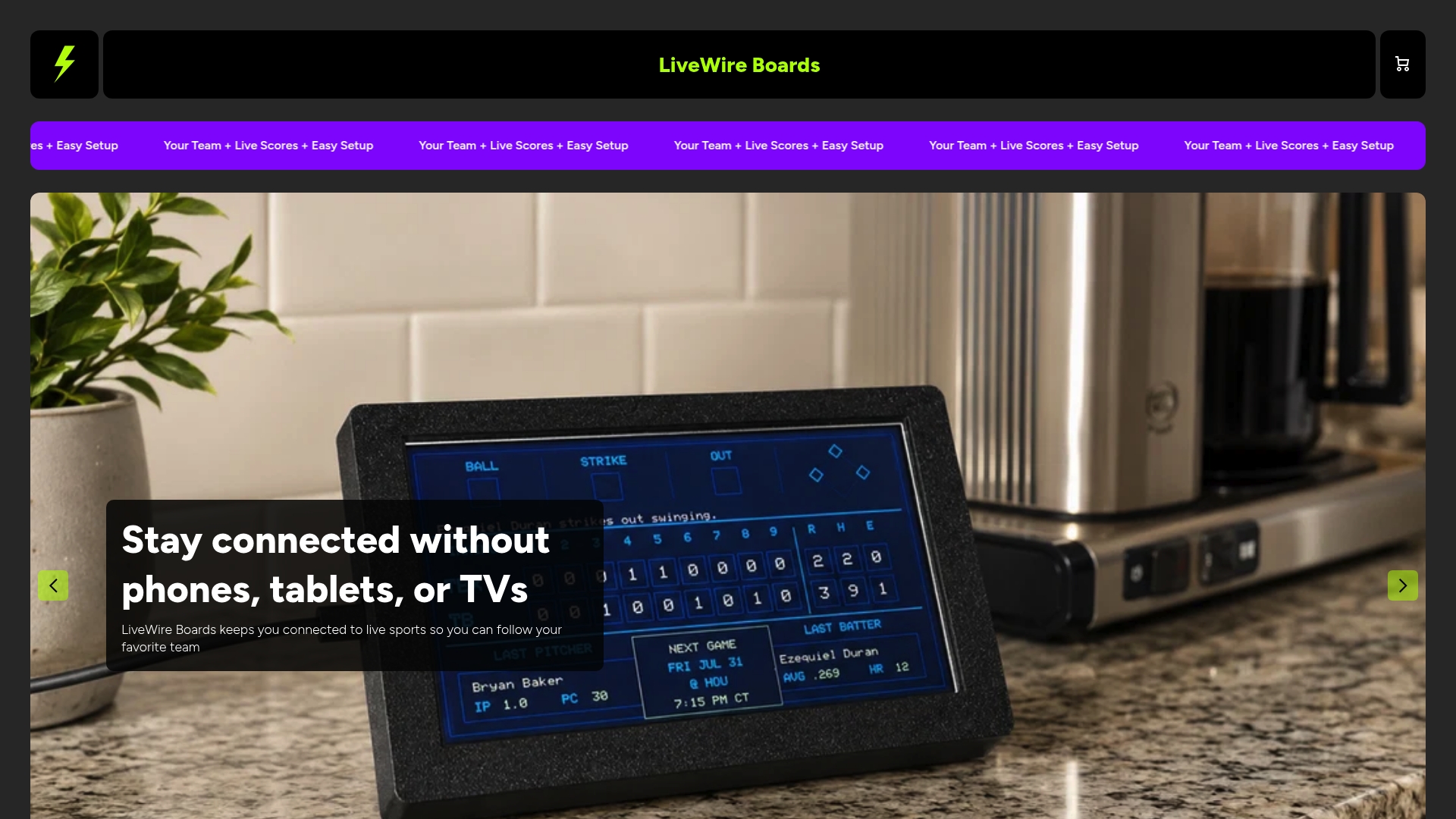
A screen-free scoreboard connects to your home Wi-Fi and shows live score updates for a selected team in baseball, football, basketball, or hockey, with no app and no screen involved beyond the board itself. It is built around the same screen-free, app-free principle covered above: pick a team, see the score, move on with your day.
Before you buy, confirm on the product page:
- Which sports and leagues are currently supported.
- Whether the board runs plugged in, on battery, or both.
- What the setup process looks like out of the box.
Visit the Original LiveWire Board product page to check current specs and order one for your home.
FAQ
Do I need an app to use a screen-free scoreboard?
No. A screen-free scoreboard like the Original LiveWire Board connects directly to your home Wi-Fi and lets you choose a team through the device itself or a local web page, with no app download required. This is part of what keeps it free of extra notifications and pop-ups.
Will a scoreboard work if my router has a guest network?
It depends on your router’s settings. Guest networks often use client isolation, which can block a smart device from communicating properly, so connecting the scoreboard to your main network usually solves the problem, as noted in common router troubleshooting guidance.
Is a screen-free scoreboard actually better for kids than checking scores on a phone?
The American Academy of Pediatrics frames screen guidance around quality and context rather than banning screens outright, and a single-purpose board fits that context by removing the notifications and open-ended browsing a phone invites. It is not a clinical fix, just a lower-friction way to get one piece of information.
How much power does an e-paper scoreboard use?
E-paper displays only draw power during a refresh and hold the image with no power in between, which is why a Wi-Fi e-paper scoreboard project built on a low-power microcontroller can run for extended periods between charges. Actual battery life depends on how often the board refreshes.
What sports does the Original LiveWire Board support?
The Original LiveWire Board supports baseball, football, basketball, and hockey, with team selection handled through the device after it connects to Wi-Fi. Check the product page for the current list before buying, since supported leagues can change.


