
How to Turn Off Sports Notifications on Any Device
The fastest fix is to open the app sending the alert, find its Sports or Alert Preferences category, and switch it off, then unfollow any teams you no longer want tracked. On iPhone that means Settings > Notifications for TV and News; on Android it’s the Google app’s Notification categories. If alerts keep coming back, force-stop the app, clear its cache, and restart your phone.
TL;DR:
- Turning off sports notifications on iPhone requires managing separate settings in the TV app and Apple News, with delays due to sync lag and device checks.
- Android users must toggle off the Sports category in the Google app notifications and periodically review interests to stop persistent alerts.
- Disabling app notifications completely or clearing cache and reinstalling apps are effective last-resort steps if alerts keep reappearing.
- Regularly reviewing followed teams and using Focus modes help control sports alerts without needing to block all notifications permanently.
- Devices like LiveWire Boards offer a screen-free, notification-free way to display live scores, avoiding app and phone alerts altogether.
Table of Contents
- How to disable sports notifications on iPhone
- How to stop Google sports notifications on Android
- How to turn off ESPN and other sports app alerts
- Why do sports notifications keep coming back?
- Should you prune sports alerts instead of blocking them all?
- Sports alert overload has a low-tech fix most people overlook
- Want scores without the notification battle at all?
- Sources
How to disable sports notifications on iPhone
Apple splits sports alerts across two places, and it trips people up because turning one off doesn’t touch the other. The TV app handles Featured Sports alerts, while Apple News handles its own separate Sports toggle.
Here’s where to go:
- TV app alerts: Settings > Notifications > TV > Customize Notifications, then turn off Featured Sports.
- News app alerts: Settings > Notifications > News > News Notification Settings, then turn off Sports under Alerts.
- Team-level cleanup: open the TV app and the News app separately and unfollow any teams listed under My Sports in each one.
The tricky part is that Apple’s My Sports preference syncs your followed teams across TV, News, and other Apple apps, but that sync isn’t instant. Unfollowing a team in one app doesn’t always clear the notification in another until the sync catches up, so check both apps individually rather than assuming one change covers everything.
Pro Tip: If you use an iPad or Apple TV box alongside your iPhone, check notification settings on those too. My Sports follows are tied to your Apple ID, and a stray follow on a shared TV box can keep alerts flowing to your phone.
How to stop Google sports notifications on Android
Android routes most sports alerts through the Google app itself, not through Android’s system settings first. Start there before touching anything else.
- Open the Google app, tap your profile icon, then go to Settings > Notifications > Notification categories, and toggle off Sports.
- To stop alerts for a specific team or league, go to your Interests tab inside the Google app and remove the ones you no longer follow.
- If notifications persist, go around the app entirely: Settings > Apps > Google > Notifications > Notification categories, and disable Sports at the system level.
Turning off the Sports category and removing individual teams from Interests together is the most reliable combination, since the category toggle stops new alert types while unfollowing kills alerts tied to teams you already added months ago and forgot about.
Use the system-level route only as a fallback. It’s a blunt instrument, it kills every Google app notification, including search reminders and other categories you might actually want.
Pro Tip: Check Interests every few months. Teams you followed for a single playoff run in a past season tend to sit there quietly generating alerts long after you’ve stopped caring about that particular season.
How to turn off ESPN and other sports app alerts
Sports-specific apps like ESPN put notification controls in a dedicated menu rather than burying them in the phone’s general settings, which makes them easier to fine-tune than you’d expect.
- In the ESPN app, tap the gear icon, then go to Alert Preferences, where you can toggle breaking news, per-team alerts, and gambling-related notifications separately.
- Fantasy sports apps and team-branded apps almost always follow the same pattern: a settings menu with per-league or per-team switches instead of one master toggle.
- If a Live Activity or home-screen widget is still showing live scores after you’ve adjusted app settings, that’s a separate feature. Turn it off inside the app’s widget settings or remove the widget entirely.
- When an app’s internal controls don’t stick, disable its notifications system-wide instead. On iPhone: Settings > Notifications > [app name] > Allow Notifications, off. On Android: Settings > Apps > [app name] > Notifications, off.
ESPN’s Alert Preferences menu lets you keep breaking news alerts while cutting per-team score notifications, which is worth doing before you nuke the app’s notifications entirely and lose alerts you might actually want, like injury reports for a fantasy roster.
Why do sports notifications keep coming back?
When you’ve flipped every toggle and alerts still show up, work through these steps in order rather than jumping straight to uninstalling:
- Restart your phone. This clears a surprising number of stuck notification states without you touching a single setting.
- Force-stop the app (Android: Settings > Apps > [app] > Force Stop) or force-quit it (iPhone: swipe up from the app switcher), then reopen it and recheck your settings.
- Clear the app’s cache on Android, or delete and reinstall the app on iPhone if the notification setting won’t save.
- Check synced accounts. Google Interests and Apple’s My Sports both sync across devices, and a follow left active on one device or in your Google account activity can keep alerts flowing even after you’ve adjusted the app itself.
- Check your browser. If scores show up through Google News or Discover rather than an app, review your Discover topics and site notification permissions in your browser settings.
Pro Tip: Before assuming an app is broken, check accounts.google.com or the app’s own account preferences page. A lot of “stuck” notifications trace back to a web-based follow you set up years ago and forgot existed.
Should you prune sports alerts instead of blocking them all?
Cutting every sports notification isn’t always the goal, and treating your followed teams like a junk drawer that never gets cleaned out is usually the real problem. Following teams and enabling Live Activities works like subscribing to a service: useful when you set it up, forgotten a season later, and still pinging your lock screen.
A few habits that keep alerts under control without cutting yourself off entirely:
- Review followed teams and Live Activities every few months and drop anything tied to a season or league you no longer follow.
- Use Focus modes or Do Not Disturb during work hours or family dinners to silence sports categories without disabling them permanently.
- Keep must-have alerts, calendar reminders, messages, and turn off sports as the disposable category, not the other way around.
Around 1 in 3 phone owners report checking their device within minutes of a notification arriving regardless of its urgency, which is part of why sports alerts, low-stakes but frequent, do so much quiet damage to focus. For households trying to cut screen time without losing live scores altogether, a screen-free scoreboard like LiveWire Boards sidesteps the whole notification problem by displaying updates on a dedicated device instead of a phone.
Sports alert overload has a low-tech fix most people overlook
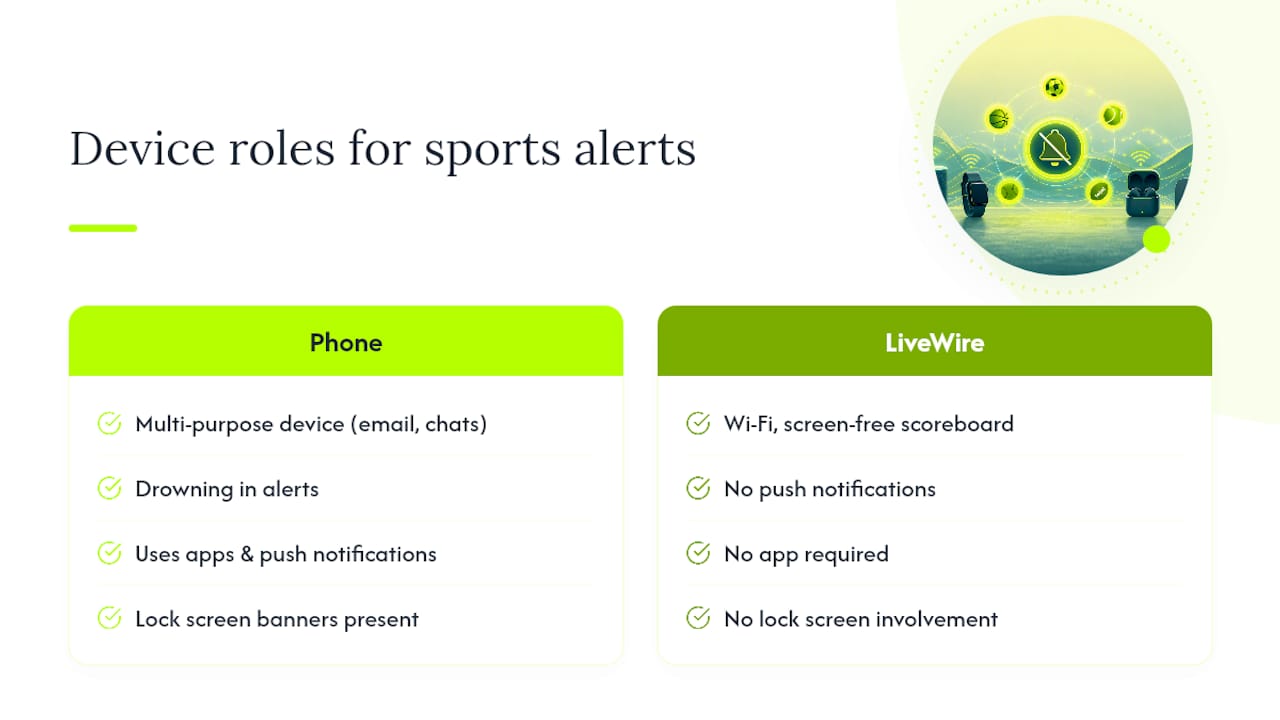
Most guides stop at “turn off the notification,” and that’s fine as far as it goes. But the deeper issue is that sports alerts are one of the few notification categories people genuinely want, just not on the device that’s also holding their email, their group chats, and every other source of interruption in their life. You end up either drowning in alerts or cutting yourself off from scores you actually care about, because the phone doesn’t let you separate the two cleanly.
That’s the gap LiveWire Boards is built for. It’s a Wi-Fi connected, screen-free scoreboard that shows live score updates for the teams you pick, baseball, football, basketball, or hockey, without an app, without a push notification, and without a lock screen involved at all. For families trying to cut screen time, or for a kid with ADHD who gets derailed by every buzz and banner, that distinction matters more than any notification setting ever will. It’s not a workaround. It’s a different device for a different job.
— Cameron
Want scores without the notification battle at all?
If you’ve gone through every setting above and you’re still tired of managing sports alerts, there’s a simpler move: get the scores off your phone entirely. The Original LiveWire Board connects to your Wi-Fi, lets you pick your favorite teams across baseball, football, basketball, or hockey, and displays live score updates on a dedicated screen in any room, no app, no push notification, no lock-screen interruption.
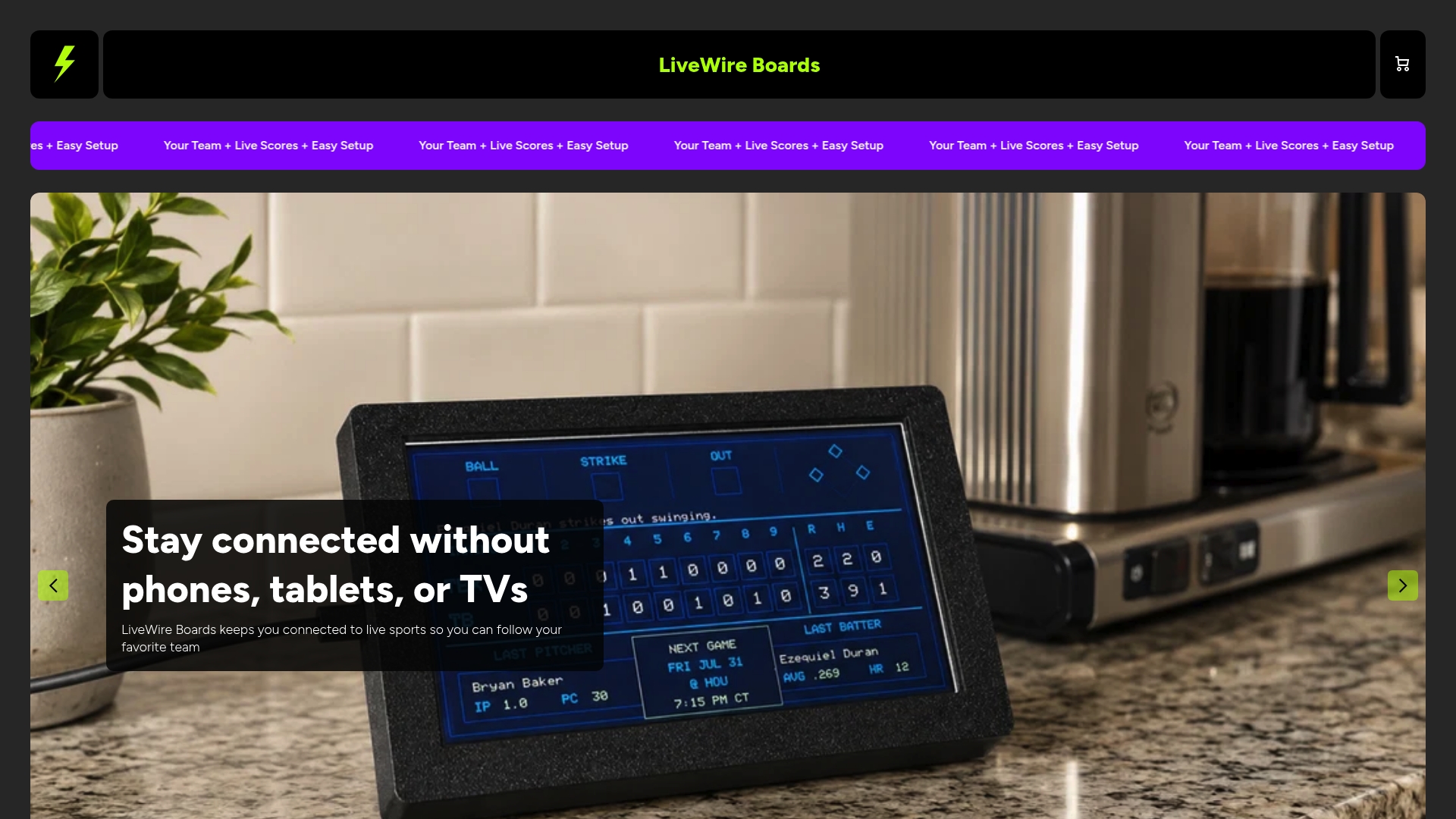
Setup takes minutes: plug it in, connect it to Wi-Fi, choose your teams, and it starts updating on its own. If you want it to match your space, the Custom Color Upgrade lets you personalize the case. Browse the full lineup on the LiveWire Boards home page and get one set up before the next game starts.
Sources
- Change your Google notifications - Android
- How to turn off sports notifications from Apple TV and News apps
- How to Turn Off Annoying Apple TV Sports Notifications | PCMag
Recommended
- LiveWire Boards
- News – LiveWire Boards
- Home page – LiveWire Boards
- Your Privacy Choices – LiveWire Boards


